Connecting Up Your Claude Account Via MCP
SAM Training · Getting connected
Connecting Up Your Claude Account Via MCP
Connect Claude to your SAM system once. Then Claude can work in your business with you, on the web, on your phone and on your desktop.
Let your Claude walk you through it
Copy the message in the box below (click inside it, press Ctrl + A then Ctrl + C, or Cmd on a Mac), then paste it into your own Claude chat and press Enter. Claude reads this lesson and takes you through it one step at a time, at your pace.
What is MCP?
MCP sounds like tech talk, but it's simple: it's a connection system made for AI. It lets Claude talk to the other programs you use, safely.
You make one connection, called a connector, between Claude and your SAM system. You sign in yourself and choose which parts of your business Claude may work in. Claude never sees your password.
Step by step
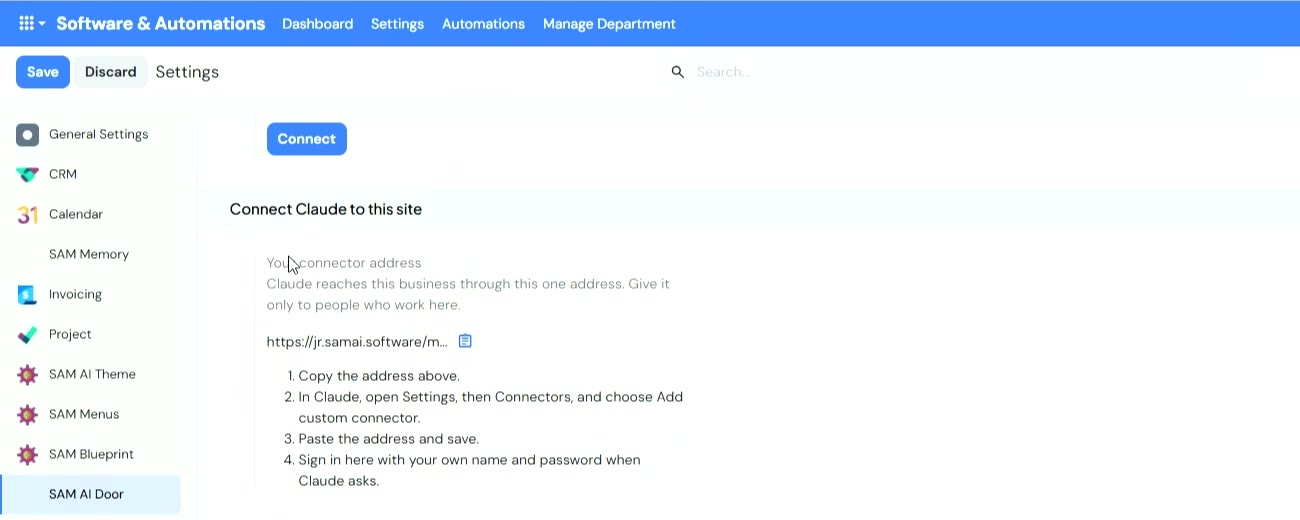
Step 1: Copy your connection address from SAM
In your SAM system, open Settings and click Connections in the list on the left. Under Connect Claude to this site, click the copy icon next to Your connector address. The address is now on your clipboard.
Give this address only to people who work in your business.
Step 2: Open your own Claude account
Go to claude.ai (or the Claude desktop app) and sign in as yourself.
Step 3: Open Claude's Plugins page
Go straight there: claude.ai/plugins (no hunting through menus). Click Add at the top right, then Add custom connector.

Can't see "Add custom connector"? On a work Claude account, whoever looks after Claude at your work adds it for you.
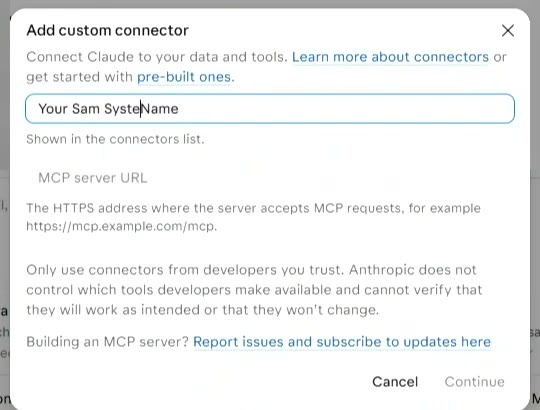
Step 4: Name it and paste the address
Name: your business name, so you'll recognise it. Address: paste what you copied in step 1 (Ctrl + V, or Cmd + V on a Mac). Click Add, then Connect.
Step 5: Sign in to SAM and approve
Your SAM sign-in page opens in the browser. Sign in with your own SAM password. SAM asks which departments Claude may work in. Tick the ones you want (tick them all to let SAM help everywhere) and click Connect.
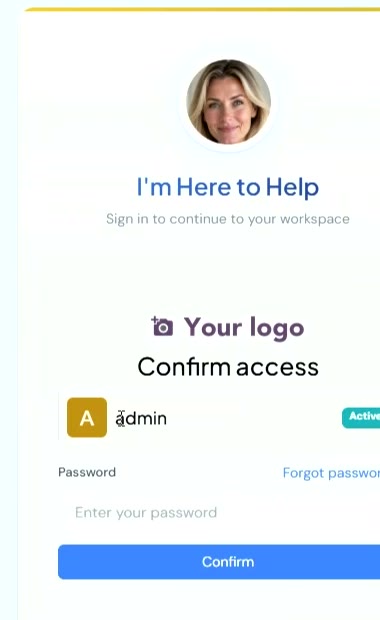
Sign in with your SAM password
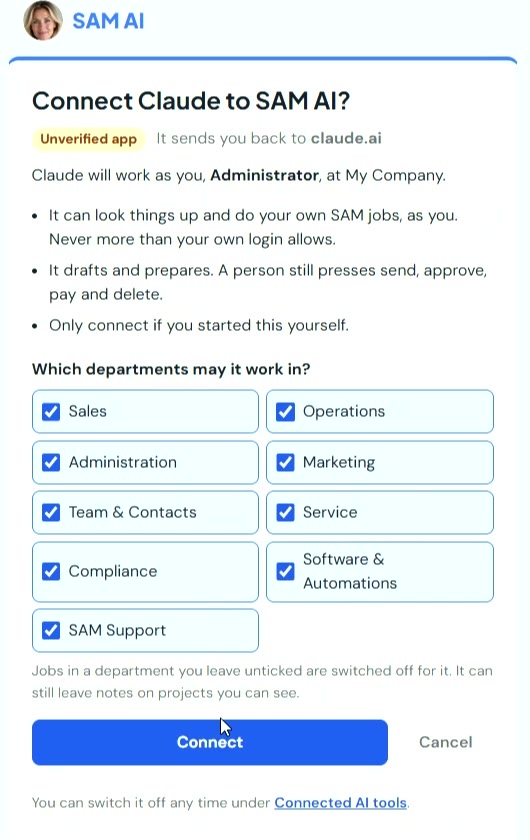
Choose departments, then Connect
Step 6: Check it's live
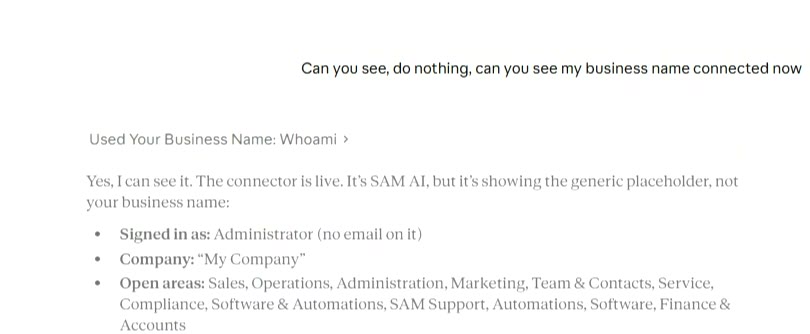
Back in Claude, your business now shows as connected. Start a new chat and ask: "Can you see my business name connected now?" Claude answers from your SAM system.
Also on your phone and desktop
Phone: the Claude phone app uses the same connection automatically. Sign in to the app with the same Claude account and your business is there.
Desktop (Claude in VS Code): open the SAM panel, click + Add a site (paste its address), paste the same address and finish the sign-in and approve steps in your browser.
If something goes wrong
- It says my password is wrong. Use the password for your SAM system, not your Claude password. On the sign-in page, click Forgot password? to set a new one.
- I can't find Connectors in Claude. Skip the menus and go straight to claude.ai/plugins, then Add, then Add custom connector. Claude moves its menus from time to time, but this address takes you to the right page.
- It says connected, but Claude can't see my business. Start a new chat. If it still can't, open the connector in Claude's Connectors list, disconnect it, and connect again (steps 4 and 5).
- I'm still stuck. Raise a ticket with SAM Support. An AI agent picks it up straight away and works out whether a person needs to step in or whether it can be fixed for you.
Also asked as: help me connect my MCP, connect Claude to SAM, set up my MCP connection, add SAM to Claude, custom connector, Claude connector address, connect Claude to my business, use SAM in Claude on my phone
Next: ask Claude to help you add your business details and your first leads. SAM does the work in your system while you talk it through.
There are no comments for now.
to be the first to leave a comment.