Welcome Aboard: Have a Look Around
Getting Comfortable · Lesson 1
Welcome Aboard: Have a Look Around
Your SAM software is ready. Today there's nothing to set up and nothing you can break. Just click around, see what's where, and let Sam help you as you go.
Let your Claude walk you through it
Copy the message in the box below (click inside it, press Ctrl + A then Ctrl + C, or Cmd on a Mac), then paste it into your own Claude chat and press Enter. Claude reads this lesson and takes you around, one step at a time.
It's normal to feel a bit overwhelmed. SAM can do a lot, and you won't use all of it. Like a spreadsheet program, it has far more in it than anyone needs. Choose what you use, and let Sam help with the rest.
Today's lesson: click around and see what happens
1. Look at your departments
Click the grid button at the top left. You'll see every area of your business: Sales, Operations, Administration, Marketing, Team & Contacts, Service, Compliance, Software & Automations and SAM Support. Every business uses different ones. That's fine.
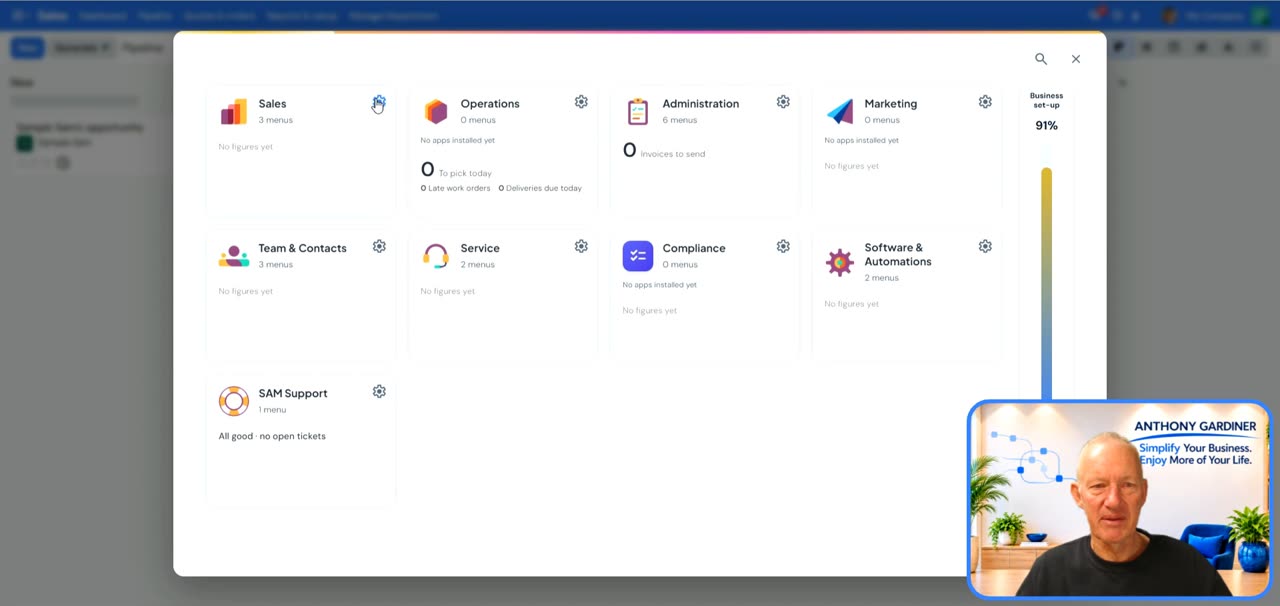
2. Open a department and ask Sam about it
Open any department. Sam sits beside you on the right and already knows that area. Click Ask Sam about this and Sam tells you what the area is for and what might need doing. Then just have a conversation.
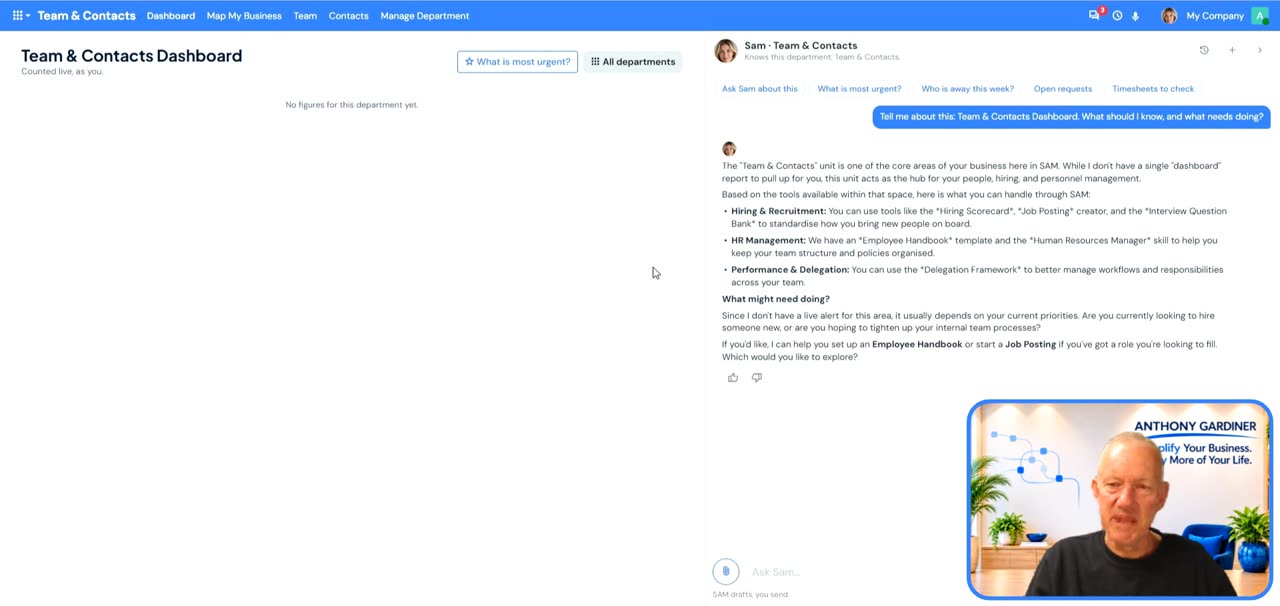
3. Not a great answer? Tell us
Sam gets smarter every day. If an answer isn't right, click the thumbs down or raise a ticket and add a comment. Sam, and the team behind Sam, pick it up and help sort it out.
4. Find SAM Support
In SAM Support, Team Training has the welcome sessions, the courses for every department and Raise a ticket. The courses were written mostly to teach Sam, so Sam can be your support person. You're welcome to click through them too.
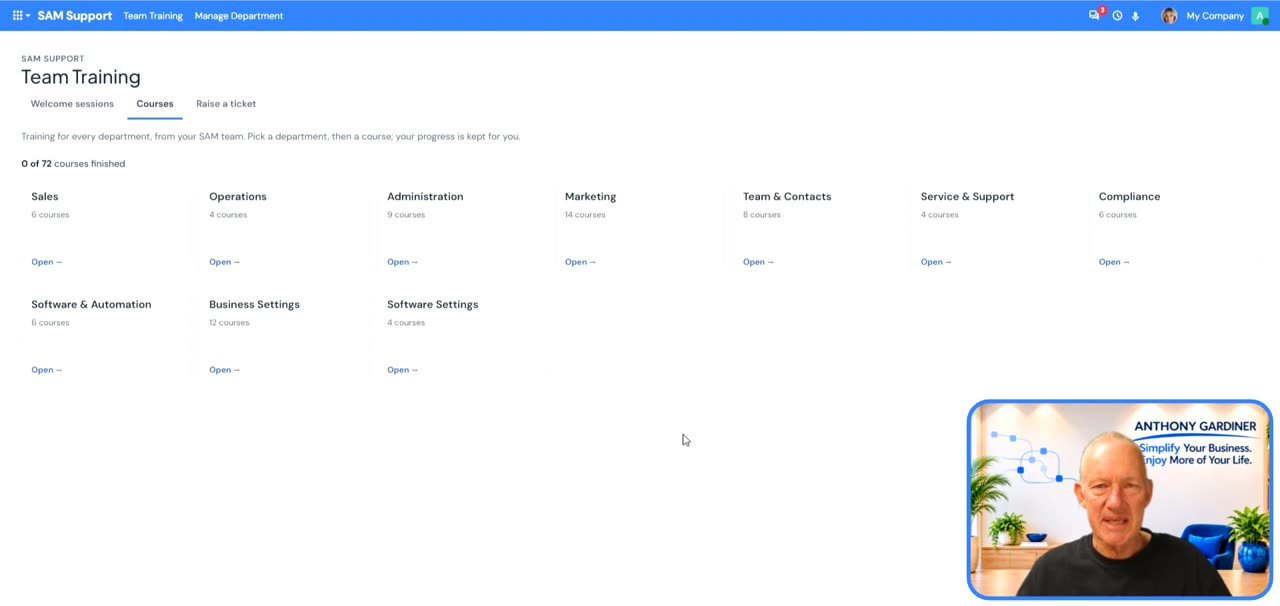
5. Peek at the rest
Up the top you'll find things like your contacts and your sales pipeline. Each department also has Manage Department, where you can change its menus. We'll go into that in a later lesson. Today, just look.
Questions people ask
- Can I break anything by clicking around? No. Looking changes nothing. Sam drafts, and you're the one who presses the final buttons.
- A department says "No apps installed yet". That's normal on a new system. The next lesson shows you how to switch on the apps you want.
- A dashboard says "No figures yet". Also normal. Figures appear once you start using that area.
- I'm lost. Ask Sam on the right-hand side: "Where am I and what is this area for?"
Also asked as: where do I start, I'm new to SAM, show me around SAM, what is each department for, getting comfortable with SAM, first steps in my SAM software, how do I ask Sam about this area, how do I raise a ticket
Next in Getting Comfortable: switching on the apps your business needs.
There are no comments for now.
to be the first to leave a comment.